November 26, 2009

Turn On Remote Desktop in Windows 7 and Vista

Windows 7 ႏွင့္ Vistaသည္ ပံုမွန္အားျဖင့္ Remote Desktopအား ပိတ္ထားပါသည္။ သို႔ေသာ ၄င္းအား လြယ္ကူစြာျဖင့္ ဖြင့္ႏိုင္ပါသည္။ မိမိ၏ Vistaအား တျခားကြန္ပ်ဴတာမွ လွမ္းၾကည့္ခ်င္ပါက Remote Desktopအား ဖြင့္ဖို႔လိုအပ္ပါသည္။

မွတ္ခ်က္။ ။ Remote Desktopသည္ Business, Profesional, Ultimate Versionsတြင္သာ ပါပါသည္။ Home Editionတြင္ ယင္းမပါပါ။

  1. System Configuration Page ကို သြားရပါမယ္။ ေခၚတဲ့နည္း (3)နည္းရွိပါတယ္။ (၁) - Start menu ေခၚ ၊ Menuမွ Computer ေပၚတြင္ Right-clickႏွိပ္ၿပီး ေပၚလာေသာ Menuမွ Properties ကိုႏွိပ္ပါ။ (2) Start Menuကိုေခၚပါ။ Search boxတြင္ Systemကို ရိုက္ထည့္၍ Enterေခါက္ပါ။ (၃) Control Panel > Systemကိုလည္း ႏွိပ္ႏိုင္ပါသည္။
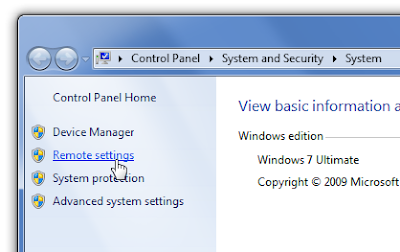
  2. System Properties Windowsရဲ ဘယ္ဘက္အပိုင္းတြင္ Remote Settingကို ေတြ႔ရပါမည္။ ႏွိပ္လိုက္ပါ။

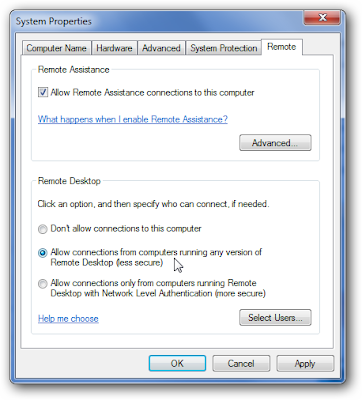
  3. System Properties Dialog Boxမွ Remote Tabေအာက္တြင္ "Allow Remote Assistance connection to this computer"ကိုအမွန္ျခစ္ျပပါ။ Remote Desktop ေအာက္တြင္ တတိယေရြးခ်ယ္မွဳကို ႏွိပ္လိုက္ပါ။

  4. Allpy > Ok
ဆက္ဖတ္ရန္

How to Create Password Reset Disk in Vista Using USB

လူတိုင္း လူတိုင္း မည့္သည့္အရာ၊ ကိစၥ မဆို တခါတရံ ေမ့တတ္ပါတယ္။ သို႔ျဖစ္ပါ၍ ကြန္ပ်ဴတာ အသံုးျပဳသူမ်ားသည္ ပို၍ ေမ့လြယ္ႏိုင္ပါသည္။ အဘယ္ေၾကာင့္ဆိုေသာ အခ်က္အလက္မ်ားစြာအား ဦးေႏွာက္ထဲသို႔ ထည့္သြင္းရပါေသာေၾကာင့္ျဖစ္သည္။

အခုတင္ျပမည့္ အေၾကာင္း အရာကေတာ့ USB Flash Driveကို အသံုးျပ၍ Windows Vista Admin Passwordအား (Reset) ျပန္လည္ ျပင္ဆင္ႏိုင္ရန္အတြက္ျဖစ္သည္။ ၾကိဳတင္ျပင္ဆင္မွဳ အေနနဲ႔ေပါ့။ တခါတရံ မိမိရဲ့ Passwordကို တျခားတေယာက္ေယာက္အား ေပးသိထားၿပီး Passwordအသစ္ကို ခဏခဏ ေျပာင္းလိုက္ရင္ ေမ့ႏိုင္ပါတယ္။ ဒါ့ေၾကာင့္ User Passwordကို ထည့္လိုက္တာနဲ႔ Password Resetလုပ္ဖို႔ သင့္ပါတယ္။
အကယ္၍ Windows Vista Userန႔ဲ Password တစ္ခုခုအားမွားယြင္းစြာ ရိုက္ထည့္လိုက္ပါက Error Message ထြက္လာမည္မွာ ေသခ်ာပါတယ္။
Reset Passwordလုပ္ဖို႔ USB တစ္ေခ်ာင္းေတာ့ လိုလိမ့္မယ္။ Floppy Diskကေတာ့ အခုေခတ္မွာ အသံုးနည္းသြားပါၿပီ။ ဒါ့ေၾကာင့္ USBနဲ႔ Reset Diskလုပ္ပါမယ္။ ေအာက္ပါအတိုင္းလုပ္ပါ။

  • ဦးစြာ USB Flash Driveအား ကြန္ပ်ဴတာႏွင့္ ခ်ိတ္ဆက္လိုက္ပါ။
  • Start Menu > Control Panel > User Account and Family Safety ႏွိပ္ပါ။
  • ထို႔ေနာက္ User Accounts ကိုႏွိပ္ပါ။
  • ထို႔ေနာက္ ဘယ္ဘက္ Paneတြင္ Create a password reset diskကို Task ရဲ့ေအာက္မွာႏွိပ္ပါ။

  • ထို႔ေနာက္ Password Reset Wizard's Welcome Screen Dialog Boxထြက္လာပါက Nextႏွိပ္ပါ။

  • ေနာက္တစ္မ်က္ႏွာတြင္ I want to create password key disk in the following driveတြင္ USB Driveကို ေတြ႔ပါမည္။ မဟုတ္ပါက ထပ္ေရြးၿပီး Nextကိုႏွိပ္ပါ။
  • လက္ရွိ User Password Boxထဲတြင္ လက္ရွိ Userရဲ့ Passwordကို ရိုက္ထည့္လုိက္ပါ။ ထို႔ေနာက္ Nextကိုႏွိပ္ပါ။ အကယ္၍ မိမိUserတြင္ Passwordမရွိေသးပါက Password boxကို အလြတ္ထားလိုက္ပါ။ အရင္ဦးဆံုးထည့္ထားပါက ေကာင္းပါလိမ့္မည္။


  • Prograss Barက ၁၀၀%ျပည့္သြားပါက Finishကိုႏွိပ္ပါ။ USBကို မလိုအပ္ေသးပါက ျဖဳတ္ႏိုင္ၿပီး လိုအပ္လ်င္ ထို USBအား နံမည္တပ္မည္/ သို႔မဟုတ္ အနာဂတ္မွာ Password Rest အသံုးျပဳဖို႔ အမွတ္အသားျပဳႏိုင္ပါသည္။
  • Password Reset Disk လုပ္ၿပီးသြားပါၿပီ။

Windows Vistaတြင္ Password ေမ့သြားၿပီး Reset လုပ္လိုပါက.

  • USBကို ကြန္ပ်ဴတာႏွင့္ ခ်ိတ္ဆက္လိုက္ပါ။ ထို႔ေနာက္ ကြန္ပ်ဴတာကိုဖြင့္လိုက္ပါ။
  • Longo ေနရာေရာက္ေနပါက Reset Passwordကိုႏွိပ္ပါ။

  • Password Reset Wizardတြင္ Next ကိုႏွိပ္ပါ။


  • ထို႔ေနာက္ The password key disk is in the following drive list စာသားေအာက္တြင္ မိမိ Reset Diskကို ေရြးၿပီး Nextကိုႏွိပ္ပါ။
  • ေနာက္ Screenတစ္ခုတြင္ Password အသစ္ကို ရိုက္ထည့္ပါ။ Confirmျဖစ္ဖို႔ ေနာက္တစ္ေခါက္ ရိုက္ထည့္ပါ။ Nextကို ထပ္ႏွိပ္ပါ။
  • ေနာက္ Screenတစ္ခုတြင္ ခုဏကရိုက္ထည့္တဲ့ Passwordကို ထပ္ရိုက္ပါ။ Confirm fieldတြင္ ထပ္ရိုက္ပါ။ Password hintကိုထည့္ Passwordမွတ္မိလြယ္ေအာင္ ရိုက္ထည့္ႏိုင္ပါသည္။

  • ထပ္ၿပီး Nextကို ထပ္ႏွိပ္ပါ။ Wizardကို Finishႏွိပ္၍ ပိတ္လိုက္ပါ။
  • ေနာက္ဆံုး Vista Userအား Passwordအသစ္ျဖင့္ ရိုက္သြင္း ၀င္လိုက္ပါ။

မွတ္ခ်က္။ ။ USBနဲ႔ Password Resetလုပ္တာနဲ႔ ပတ္သတ္လို႔ မည္သည့္ Vista Edition မဆို ျပဳလုပ္ႏိုင္ပါတယ္။ သို႔ေပမယ့္ မိမိ Vistaကို Password Reset Disk လုပ္ထားတဲ့ USBကို တျခားကြန္ပ်ဴတာအား အသံုးျပဳ၍ မရပါ။ ယင္း USB Reset diskအား လံုးျခံဳသည့္ေနရာတြင္ ထားရပါမည္။


ဆက္ဖတ္ရန္

August 25, 2009

Goodbye My Love

ကၽြန္ေတာ္ ခရီးထြက္ရေတာ့မွာ ျဖစ္တဲ့အတြက္ Postေတြ တင္ႏိုင္မွာ မဟုတ္ပါဘူး။ ခရီးက ၾကာမယ္ထင္ပါတယ္။ အေမ၊ အကို၊ တူမနဲ႔ ခ်စ္ခ်စ္ကိုလည္း ခြဲရေတာ့မယ္ေလ။ ဘ၀တိုးတက္ေရးအတြက္ ခဏတာ လမ္းခြဲရတာေပါ့။ ဘ၀ဆိုတာ ဒီလိုပါပဲ။ ကၽြန္ေတာ္ (၁၀)တန္းတံုးက The brookဆိုတဲ့ကဗ်ာကို မွတ္မိေသးတယ္။ Alfred Lord Tennyson ေရးထားတဲ့ ကဗ်ာေလ။ ဒီကဗ်ာကို အမွတ္တရ အေနနဲ႔ တင္လိုက္ပါတယ္။

The Brook
I come from haunts of coot and hern,
I make a sudden sally
And sparkle out among the fern,
To bicker down a valley.

By thirty hills I hurry down,
Or slip between the ridges,
By twenty thorpes, a little town,
And half a hundred bridges.

Till last by Philip's farm I flow
To join the brimming river,
For men may come and men may go,
But I go on for ever.

I chatter over stony ways,
In little sharps and trebles,
I bubble into eddying bays,
I babble on the pebbles.

With many a curve my banks I fret
By many a field and fallow,
And many a fairy foreland set
With willow-weed and mallow.

I chatter, chatter, as I flow
To join the brimming river,
For men may come and men may go,
But I go on for ever.

I wind about, and in and out,
With here a blossom sailing,
And here and there a lusty trout,
And here and there a grayling,

And here and there a foamy flake
Upon me, as I travel
With many a silvery waterbreak
Above the golden gravel,

And draw them all along, and flow
To join the brimming river
For men may come and men may go,
But I go on for ever.

I steal by lawns and grassy plots,
I slide by hazel covers;
I move the sweet forget-me-nots
That grow for happy lovers.

I slip, I slide, I gloom, I glance,
Among my skimming swallows;
I make the netted sunbeam dance
Against my sandy shallows.

I murmur under moon and stars
In brambly wildernesses;
I linger by my shingly bars;
I loiter round my cresses;

And out again I curve and flow
To join the brimming river,
For men may come and men may go,
But I go on for ever.

---------------------------------------------------------------
ေနာက္တစ္ပုဒ္က ကၽြန္ေတာ့္ရဲ့ အရင္းနီးဆံုးလူတစ္ေယာက္အတြက္ေပါ့။

Goodbye My love
Remember me when I am gone away,
Gone far away into the silent land;
When you can no more hold me by the hand,
Nor I half turn to go yet turning stay.
Remember me when no more day by day
You tell me of our future that you plann'd:
Only remember me; you understand
It will be late to counsel then or pray.
Yet if you should forget me for a while
And afterwards remember, do not grieve:
For if the darkness and corruption leave
A vestige of the thoughts that once I had,
Better by far you should forget and smile
Than that you should remember and be sad.

By Christina Rossetti

ရႊင္လန္းခ်မ္းေျမ့ပါေစ။
ဆက္ဖတ္ရန္

August 22, 2009

Related Posts Widget with Photo Thumbnails

တူညီတဲ့ Categoriesမ်ားမွာ တူညီတဲ့ အေၾကာင္းအရာမ်ားနဲ႔ ပတ္သတ္ၿပီး Related Posts Widgetက ေဖာ္ျပပါတယ္။ Postsမ်ားတင္တိုင္း သက္ဆိုင္ရာ တူညီတဲ့ Postမ်ားအား ေဖာ္ျပျခင္းအားျခင့္ စာဖတ္သူအား စိတ္၀င္စားဖြယ္ရာ တူညီတဲ့ Postေတြကို လြယ္ကူစြာျဖင့္ ရွာေဖြေစႏိုင္ပါတယ္။ ယခင္ Postေတြမွာလည္း ပံုစံတူ ေဖာ္ျပထားပါတယ္။ ဒါေပမယ့္ ယခု Postက Thumbnail ပံုေတြ ပါတဲ့ Related Posts Widgetျဖစ္ပါတယ္။ ဒီ Widgetက Postေတြရဲ့ေခါင္းစဥ္ေတြကို ျပပါတယ္။ Postထဲမွာရွိတဲ့ ပံုကေတာ့ အေပၚမွာ ေပၚပါတယ္။ ပံုစံကိုေတာ့ ကၽြန္ေတာ့္ရဲ့ Blogထဲမွာ တင္ျပထားပါတယ္။ သိပ္လွပၿပီး စာဖတ္သူမ်ား လြယ္ကူစြာျဖင့္ အသံုးျပဳႏိုင္ပါတယ္။

သေဘာက်တယ္ဆိုရင္ ကိုင္း.. ထည့္ၾကရေအာင္။

  • LinkWithin ကိုသြားပါ။
  • Form ျဖည့္ရပါမယ္။

  • email လိပ္စာ၊ Blog URL၊ Platformက Bloggerေရြး၊ Widthက 5 storiesယူ၊
  • ေနာက္တစ္ခုက My blog has light text on a dark background အကယ္၍ သင့္Blog Backgroundက အမည္းေရာင္ျဖစ္ၿပီး စာလံုးက ေတာက္ပတဲ့အေရာင္ျဖစ္ေနပါက အမွန္ျခစ္ျပပါ။ တျခားအေရာင္ျဖစ္ေနပါက အမွန္ျခစ္ မျပပါနဲ႔။ စာလံုး မထင္းရွားေသာေၾကာင့္ျဖစ္တယ္။
  • Get Widget buttonကိုႏွိပ္ပါ။
  • စာမ်က္ႏွာပါ အဆင့္ဆင့္အတိုင္း ဆက္သြားပါ။
  • Install Widgetကိုႏွိပ္ပါ။
  • Windowေနာက္တစ္ခု ထြက္လာပါမည္။ Blog ကိုေရြးၿပီး Add Widget buttonကိုႏွိပ္ပါ။
  • အေရးႀကီးသည္မွာ ယင္းထည့္သြင္းလိုက္ေသာ Widgetအား Post Areaရဲ့ေအာက္မွာ သြားထားရပါမည္။ ၿပီးက Save ထပ္ႏွိပ္လိုက္ပါ။


  • View Blogကို သြားပါ။
  • ၿပီးပါၿပီ။
ဆက္ဖတ္ရန္

August 14, 2009

Run Boxထဲမွာ gpedit.msc ဖြင့္လို႔ မရပါက

ယု္မု္ေသွ္ယာ့့၀းသာ လု္ယု္ကြန္ပ်ဴတာ run box ဖုိင္ဏွ္ gpedit.msc ေဍာဟ္လင္ေဏ၀္လုိင္ေအး.. မု္၀းမာ ပု္ေသွ္လယ့္ဏွ္ စာ္ဂုဏ္စာ္တာ၀း ေဆ၀္လွ္.
ကၽြန္ေတာ္ဘာ လုပ္ရမွာလဲ။ Run Boxထဲမွာ gpedit.mscရိုက္ထည့္လုိ႔ မရလို႔ ဘယ္လိုလုပ္ရမယ္ဆိုတာ ေက်းဇူးျပဳ၍ ေျပာျပပါဦး။

ေမးလာပါတယ္။


ဒါကို မေျဖၾကားခင္ ကၽြန္ေတာ္ ေမးခြန္တစ္ခု ထုတ္ခ်င္ပါတယ္။

သင္၏ Windows XPက Home Editionျဖစ္ေနပါသလား။ Home Editionဆိုရင္ gpedit.msc (Group Policy Editor) မပါလာပါဘူး။ အဘယ္ေၾကာင့္ဆိုေသာ XP Homeသည္ Standalone versionျဖစ္ေသာေၾကာင့့္ျဖစ္သည္။

Windows Vista ျဖစ္ေနပါက Vista Home Premiumဆိုရင္ gpedit.mscမပါလာပါ။ Vista Business, Ultimate and Enterpriseဆိုရင္ ပါလာပါတယ္။ တိက်တဲ့ Informationကို သိခ်င္ရင္ေတာ့ ဒီ Forumမွာ ၀င္ၾကည့္ႏိုင္ပါတယ္။
အကယ္၍ တျခား Version အထူးသျဖင့္ Windows XP Proဆိုရင္ေတာ့ ပါလာပါတယ္။ ပါလာရဲ့သားနဲ႔ ေခၚလို႔ မရေသးဘူးဆိုရင္ Virus ေၾကာင့္ အမ်ားဆံုးျဖစ္ႏိုင္ပါတယ္...

Registry Editorထဲမွာ သြားၿပီး ျပင္ဆင္ႏိုင္ပါတယ္။ သို႔ေပမယ့္ Registry Editorထဲတြင္ အျပင္အဆင္ မွားသြားပါက မိမိ၏ Windows problemsမ်ားစြာ ျဖစ္လာႏိုင္ေသာေၾကာင့္ မတင္ျပခ်င္ပါ။ ထို႔ေၾကာင့္ Consoleထဲတြင္ သြင္းထည့္ႏိုင္ပါသည္။
  • Start menu > Run > "mmc"ကို ရိုက္ထည့္ပါ။ Consoleဖြင့္ျခင္းျဖစ္သည္။
  • Console 1 Windowမွ File menu> Add/Remove snap in...ကိုႏွိပ္ပါ။
  • Add/Remove snap in.. dialog boxမွ Add buttonကိုႏွိပ္ပါ။ ပံုပါအတိုင္းျဖစ္သည္။
  • ထို႔ေနာက္ Add Standalone snap-in dialog boxမွ Available Standalone snap-ins ေအာက္ကိုသြားၿပီး Group Policy Object Editorကို selectလုပ္ကာ Add buttonႏွိပ္လိုက္ပါ။
  • ထို႔ေနာက္ Finish buttonကို ႏွိပ္လိုက္ပါ။ Okဆက္ႏွိပ္ပါ။ Saveလုပ္ပါ။
  • ဒါဆိုရင္ gpedit.msc ေပၚလာပါၿပီ။
အကယ္၍ မရေသးပါက အေၾကာင္းၾကားပါရန္။
ဆက္ဖတ္ရန္

August 12, 2009

အဂၤလိပ္ - ဗမာ - ကရင္ အဘိဓါန္


တိုင္းရင္းသား ေသြးစည္းညီညြတ္ေရး ဆိုတဲ့စကားအတိုင္း ကၽြန္ေတာ္တို႔ရဲ့ ျမန္မာႏိုင္ငံသားမ်ား ေသြးစည္းညီညြတ္ၾကပါတယ္။ ဒါေၾကာင့္ ျမန္မာႏိုင္ငံသား Bloggerမ်ားစြာ ထြက္ရွိခဲ့ပါတယ္။ အားရစရာေကာင္းပါတယ္။ ကၽြန္ေတာ္လည္း ထိုထဲက တစ္ေယာက္ျဖစ္ပါတယ္။ ကၽြန္ေတာ္က ပညာေရးနဲ႔ ဘ၀ကို ျဖတ္သန္းေနပါေသာေၾကာင့္ I will apply my knowledge to my people whatever I have right now and whatever I will get in the futre. ဒါက ကၽြန္ေတာ့္ရဲ့ ကိုယ္ပိုင္ေဆာင္ပုဒ္ ျဖစ္ပါတယ္။

ယခုတင္ျပမယ့္ Postက ဆရာ Ogreမွ တင္ျပၿပီးသား Postျဖစ္ပါတယ္။ သူေရးသားထားတဲ့
စာသားအတိုင္း တင္ျပသြားပါမယ္။

Eglish-ဗမာ-ကရင္ Dictionary ေလးပါ ။
Comment ထဲမွာေတြ႔လို႔တင္ေပးလိုက္ျခင္း ျဖစ္ပါ၏ .. :-P
ကရင္ font အတြက္ေတာ့
knu ဆိုတဲ့ font ကို font folder ထဲမွာ သြားထည့္ဖို႔ေတာ့လိုပါတယ္ ..
.NET
Framework (2.0) ေလးလည္းလိုပါတယ္ဗ်ာ .. window ထဲမွာ Framework မရွိရင္ေတာ့ ဒါေလးကို download ခ်ၿပီး install
လုပ္ဖို႔ေတာ့လိုပါတယ္ဗ်ာ ..
အဆင္ေျပပါေစ ... :-)

Size : 2.86 MB

Download
http://ifile.it/i4k3f08
-------------------------------------------------
OR
Download
http://www.zshare.net/download/63988837a4bc792b/
-------------------------------------------------
OR
Download
http://www.megaupload.com/?d=X8IY5LWZ
-------------------------------------------------
OR
Download
http://www.mediafire.com/?2fkou03mzor
-------------------------------------------------
ဆက္ဖတ္ရန္

ျမန္မာ - အဂၤလိပ္ - ျမန္မာ အဘိဓါန္


ျမန္မာႏိုင္ငံသားမ်ား တိုးတက္ရာ တိုးတက္ေၾကာင္း မိမိကြန္ပ်ဴတာတြင္ အဘိဓါန္လိုအပ္ပါလိမ့္မယ္။ ဒါ့ေၾကာင့္ ဒီ အဘိဓါန္ေလးကို ကြန္ပ်ဴတာထဲမွာ ထည့္သင့္ပါတယ္။ ေဖာင့္အေနနဲ႕လည္း Zawgyi-one, Myanmar3, Ayar Burmese စတဲ့ (၃)မ်ိဳးပါတာေၾကာင့္ ႀကိဳက္တာသံုးႏိုင္တာကို ေတြ႔ရပါတယ္။ ဒီ program ေလးကို ကိုစိုးမင္းမွ ေရးသားထားတာ ျဖစ္ပါတယ္။

Name: wxPyDict_setup.rar
File size: 5.29 MB
Description: This program for all
ဒီမွာယူပါ။

ဆက္ဖတ္ရန္

August 11, 2009

Blogger မ်ားသိေစရန္

ေထြေထြထူးထူးေတာ့ မဟုတ္ပါဘူး။ HTML linkနဲ႔ ပတ္သတ္တဲ့ အေၾကာင္းအရာေလးပါ။ သာမန္အားျဖင့္ Blogspotမွေပးေသာ Linkသည္ ရိုးရိုး Linkသာျဖစ္ပါတယ္။ မိမိခ်ိပ္လိုက္ေသာ Linkသည္ မိမိ၏ Webpageမွ ထြက္သြားၿပီး ထိုLink၏ Webpageသို႔သြားပါမည္။ ဒီလိုသာဆိုရင္ မိမိ၏ ဧည့္သည္သည္ မိမိBlogမွ ထြက္သြားၿပီး အျခားေနရာသို႔ ေရာက္သြားမည္မွာ ေသခ်ာပါသည္။ မ်ားေသာအားျဖင့္ မိမိBlogမွ ထြက္မသြားလိုေသာ ဧည့္သည္သည္ ထိုLinkအား Right-clickႏွိပ္ၿပီး ေပၚလာတဲ့ Menuမွ New Tab (သို႔) New Windowကို ေခၚရပါမည္။ ဒါေၾကာင့္ ဤ Postကို တင္လိုက္ရျခင္း ျဖစ္ပါတယ္။

Link ရိုးရိုးသည္။

<a href="http://www.yahoo.com">Go to Yahoo</a>


ေအာက္ပါအတိုင္း ေပၚမည္ျဖစ္သည္။
Go to Yahoo

မိမိ၏ Blogမွ မထြက္ေစပဲ ယင္း Link၏ New Window pageကုိ သြားလိုပါက..


<a href="http://www.yahoo.com" target="_blank">Go to Yahoo</a>


ေအာက္ပါအတိုင္း ေပၚမည္ျဖစ္သည္။
Go to Yahoo

စမ္းသပ္ၾကည့္ပါ။
ဆက္ဖတ္ရန္

Transperant Calendar ထည့္လိုပါက


ကၽြန္ေတာ့္ Blogထဲကလို Transperant Calendarထည့္လိုပါက ထည့္ႏိုင္ပါၿပီ။ ဤ Calendarကို ကၽြန္ေတာ္ အရမ္းႏွစ္သက္ပါသည္။ အဘယ္ေၾကာင့္ဆိုေသာ္ ရိုးရွင္းၿပီး Updatedျဖစ္ပါသည္။ HTMLျဖင့္ ေရးသားထားျခင္းျဖစ္ပါသည္။ မိမိ၏ Templateေပၚ မူတည္ၿပီး Transperantျဖစ္ပါမည္။ မ်ားေသာအားျဖင့္ တပည့္မ်ား ႀကိဳက္ၾကပါသည္။ အျခားေသာ Calendarမ်ားစြာ ရွိပါေသာ္လည္း ျပဳလုပ္သူ၏ Labelပါေသာေၾကာင့္ မၾကိဳက္ပါ။ သင္ထည့္လိုပါက ေအာက္ပါအဆင့္တိုင္း ယူပါ။


၁။ ဤ Calendar Linkကိုႏွိပ္ပါ။ ယင္း fileကို Google Docsထဲမွာ ထည့္ထားပါတယ္။

၂။ Codeကို ကူးယူပါ။

၃။ Blogger Sign In > Layout > Page Elements > Add a gedgetကို ႏွိပ္ပါ။

၄။ HTML/JavaScriptကို ေရြးခ်ယ္လိုက္ပါ။

၅။ ကူးယူထားေသာ Codeကို Pasteလုပ္လိုက္ပါ။

၆။ Save လုပ္ပါ။ မိမိထားလိုသည့္ ေနရာတြင္ ထားၿပီး Saveထပ္လုပ္ပါ။


ဒါဆိုရင္ ရိုးရွင္းၿပီး သိပ္လွပတဲ့ ျပကၡဒိန္ကို ရပါမည္။


Vote ေပးသြားပါဦး။
ဆက္ဖတ္ရန္

August 10, 2009

Twitter Attack To Silence Georgian Blogger


တင္ျပသူ - Posted in Social Network by AURUM3 NewTech on the August 9th, 2009


DDoSနည္းျဖင့္ Twitterကို ဆန္႔က်င္တိုက္ခိုက္တဲ့သူကေတာ့ Russiaမွျဖစ္ပါတယ္။ ထိုလူသည္ Republic of Georgiaႏိုင္ငံမွ အသက္34ႏွစ္ စီးပြားေရးပါရဂူ တစ္ဦးသာျဖစ္ပါတယ္။ Abkhazia Georgian bloggerသည္ ၄င္း၏ Blogမွ Russiaႏွင့္ Georgiaႏွစ္ႏိုင္ငံ နယ္နိမိတ္စစ္ပြဲအက်ဥ္း ထိုျဖစ္ရပ္မ်ားကို ဦးေဆာင္ခ်ျပထားသည္။


ယင္း Russia ႏိုင္ငံမွ သိရသည့္ တိုက္ခိုက္သူမ်ားသည္ Spam Email Messagesမ်ားစြာကို ေပးပို႔ခဲ့ၿပီး Twitter, Facebookကိုလည္း ဒရစပ္ တိုက္ခိုက္ကာ အျခားေသာ ၀န္ေဆာင္မွဳမ်ားကိုလည္း Junk messagesမ်ားျဖင့္ ၀င္ေရာက္ ေႏွာင့္ယွက္ခဲ့သည္။
ဆက္ဖတ္ရန္

August 9, 2009

မိမိ Blog၏ Blockquoteကို ေျပာင္းလိုက

Blockquoteဆိုတာကို သိပါသလား? ၀တၳဳစာအုပ္မွာ မ်ားေသာအားျဖင့္ လူေတြစကားေျပားတဲ့အခါ စကားေျပာတဲ့စာသားကို "Quotation Mark"နဲ႔ အဖြင့္ အပိတ္လုုပ္ထားပါတယ္။ Bloggerမွာလည္း ထည့္ထားၿပီးသားပါ။ ဒါေပမယ့္ သံုးတဲ့ Bloggerရွိသလို မသံုးတဲ့ Bloggerေတြလည္းရွိတယ္။ တခ်ိဳ႔ အေၾကာင္းအရာနဲ႔ မသက္ဆိုင္လို႔ မသံုးျဖစ္တာပါ။ Blockquoteဟာ HTMLမွ Tag တစ္ခုျဖစ္ပါတယ္။ HTMLအေၾကာင္း သိတဲ့ Webmasterသမားမ်ားကေတာ့ ဒါကို သိထားၿပီးသားပါ။ Bloggerမွာ ေပးထားတဲ့ Blockquoteက ရိုးရွင္းလြန္းပါတယ္။ ဒီထက္ပိုလွတဲ့ Blockquoteကို ယခုတင္ျပသြားမွာပါ။ မခက္ပါဘူး။

ဦးစြာ
  • ေအာက္ပါ Code ကိုရွာပါ။

    .post blockquote {


    .post blockquote {

    .....

    .....

    .....


    }


    .post blockquote {

    margin: 5px;

    padding: 0px 20px 0 15px;

    border-left: 4px solid #DDD;

    color:#777;


    }


  • ယင္း Code၏ { ......} အၾကားတြင္ ေအာက္ပါ styleမ်ား၏ Codeမ်ားကို ထည့္သြင္းပါ။

  • Style 1

    အထက္ပါ style 1အတြက္ ေအာက္ပါ codeကို သံုးပါ။


    blockquote {

    font: 14px normal helvetica, sans-serif;

    margin-top: 10px;

    margin-bottom: 10px;

    margin-left: 50px;

    padding-left: 15px;

    border-left: 3px solid #ccc;

    }
    ..................................................................................................................................

    Style 2


    အထက္ပါ Style 2အတြက္ ေအာက္ပါ Codeကို သံုးပါ။


    blockquote {

    font: 14px/20px italic Times, serif;

    padding: 8px;

    background-color: #faebbc;

    border-top: 1px solid #e1cc89;

    border-bottom: 1px solid #e1cc89;

    margin: 5px;

    background-image: url(http://i41.tinypic.com/3162czl.jpg);

    background-position: top left;

    background-repeat: no-repeat;

    text-indent: 23px;

    }

    blockquote span {

    display: block;

    background-image: url(http://i41.tinypic.com/3162czl.jpg);

    background-repeat: no-repeat;

    background-position: bottom right;

    }


    --------------------------------------------------------------------------

    ထည့္ၿပီးပါက Save Templateလုပ္ပါ။ ဒါဆိုရင္ Installation ၿပီးပါၿပီ။

    ကၽြန္ေတာ့္ Blogquote၏ပံုစံ

    Blockquoteဆိုတာကို သိပါသလား? ၀တၳဳစာအုပ္မွာ မ်ားေသာအားျဖင့္ လူေတြစကားေျပားတဲ့အခါ စကားေျပာတဲ့စာသားကို "Quotation Mark"နဲ႔ အဖြင့္ အပိတ္လုုပ္ထားပါတယ္။ Bloggerမွာလည္း ထည့္ထားၿပီးသားပါ။ ဒါေပမယ့္ သံုးတဲ့ Bloggerရွိသလို မသံုးတဲ့ Bloggerေတြလည္းရွိတယ္။ တခ်ိဳ႔ အေၾကာင္းအရာနဲ႔ မသက္ဆိုင္လို႔ မသံုးျဖစ္တာပါ။ Blockquoteဟာ HTMLမွ Tag တစ္ခုျဖစ္ပါတယ္။ HTMLအေၾကာင္း သိတဲ့ Webmasterသမားမ်ားကေတာ့ ဒါကို သိထားၿပီးသားပါ။ Bloggerမွာ ေပးထားတဲ့ Blockquoteက ရိုးရွင္းလြန္းပါတယ္။ ဒီထက္ပိုလွတဲ့ Blockquoteကို ယခုတင္ျပသြားမွာပါ။ မခက္ပါဘူး။

    မရွင္းတာရွိခဲ့ရင္ Commentေပးသြားပါ။
    ဆက္ဖတ္ရန္

    August 8, 2009

    DDOS Attacks Crush Twitter, Hobble Facebook

    ေရးသားသူ။ Michael Arrington on August 6, 2009

    ယေန႔မနက္ Twitter ကို DDOS က တြားသြားရတဲ့အထိ တိုက္ခိုက္လိုက္ၿပီး နာရီေပါင္းမ်ားစြာ ဖြင့္လို႔မရတဲ့ ျပသနာ ျဖစ္ေပၚခဲ့ပါတယ္။ Rival Facebookလည္းပဲ ထိုနည္းတူ တိုက္ခိုက္ခံခဲ့ရပါတယ္။ သို႔ေသာ္ တခ်ိဳ႔ေသာ စီမံခန္႔ခြဲေရးအပိုင္းတြင္ တခ်ိဳ႔ေသာ Usersမ်ား ၀င္ေရာက္ႏိုင္ခဲ့ပါတယ္။ တခ်ိဳ႔ေသာ Usersမ်ားကေတာ့ ယင္း Siteကို ဖြင့္လို႔မရပဲ Postမ်ားကုိလည္ ဖတ္လို႔မရခဲ့ပါ။ သို႔ေသာ္ Usersမ်ားစြာ ၀င္ေရာက္ႏိုင္ခဲ့ပါတယ္။
    Facebook၏ ထုတ္ျပန္ခ်က္
    ယကေန႔ မနက္ေစာေစာအခ်ိန္တြင္ Facebookသည္ Networkနဲ႔ ပတ္သတ္တဲ့ ေႏွာင့္ယွက္မွဳကို ခံခဲ့ရၿပီး အခ်ိဳ႔ Usersမ်ားကို Facebookအား အထင္ေသးေစေအာင္ အသေရဖ်က္ခဲ့ပါသည္။ မည္သည့္ Usersမ်ား၏ အခ်က္အလက္မ်ား အႏၱရာယ္မက်ေရာက္ပါ။ Usersမ်ား၏ အခ်က္အလက္မ်ားကို အျပည့္အ၀ ျပန္လည္ရရွိႏိုင္ရန္ ကၽြႏ္ုပ္တို႔ ၀န္ထမ္းမ်ားမွ အေရးေပၚ ျပန္လည္ စီမံႏိုင္ခဲ့ပါသည္။ Facebook ၀န္ေဆာင္မွဳ ေကာင္းမြန္ေစရန္၊ အသံုးျပဳသူမ်ား လွ်င္ျမန္စြာႏွင့္ ယံုၾကည့္စိတ္ခ်စြာ ျပန္လည္အသံုးျပဳႏိုင္ေစရန္ လက္ရွိအေျခအေနကို ဆက္လက္၍ ဦးစီးေဆာင္ရြက္ေနပါသည္။

    ကၽြန္ေတာ္တို႔ ၾကားသိရသေလာက္ေတာ့ Facebookႏွင့္ Twitterတို႔သည္ ယင္းတိုက္ခိုက္မွဳမွ ျပန္လည္ စုစည္းႏိုင္ေစရန္ အသက္ ၁၅ႏွစ္ အသံုးျပဳသူမ်ား တာ၀န္ရွိေၾကာင္း တိတိက်က် ျပသနာကို ရွာေဖြ၍ အတူတကြ အလုပ္လုပ္ေနပါသည္။
    ဆက္ဖတ္ရန္

    August 4, 2009

    Stars rating ကို Blog Postတင္တိုင္း ေပၚေစလိုက


    Postတင္တိုင္း ထိုPostအား စာဖတ္သူအေနနဲ႔ အေၾကာင္းအရာေပၚ မူတည္ၿပီး Commentေတြ ေပးၾကတယ္။ (သို႔မဟုတ္)Stars Ratingေတြ ေပးၾကတယ္။ ကၽြန္ေတာ္ ေဖာ္ျပခ်င္တာကေတာ့ Star Ratingျဖစ္ပါတယ္။ ဒါက Commentလို မဟုတ္ဘဲ လြယ္လြယ္ကူကူနဲ႔ ေပးႏိုင္ပါတယ္။ ၾကယ္ေလးေတြကို ေရြးခ်ယ္ၿပီး Voteလုပ္ရံုပါပဲ။ ကၽြန္ေတာ့္ရဲ့ Postေတြကိုလည္း Vote လုပ္သြားပါဦး။ ပံုမွန္အားျဖင့္ Bloggerမွ ေပးထားတဲ့ Templateေတြကို သံုးရင္ Star Rating ပါထားၿပီးသား ျဖစ္ပါတယ္။ သင္သည္ Bloggerမွ ေပးထားေသာ Templateကို ယူသံုးထားပါက ေအာက္ပါအဆင့္အတိုင္းသြားပါ။

    ၁။ Blogger Sign In > Dashboard > Layout > Page Elements ကိုသြားပါ။
    ၂။ Page Elementsမ်ားတြင္ Blog Posts၏ ေအာက္တြင္ Editကို ႏွိပ္ပါ။
    ၃။ ထိုေနာက္ Stars Ratingကို အမွန္ျခစ္ျပၿပီး Saveလုပ္လိုက္ပါ။

    အကယ္၍ သင္သည္ တျခား Custom Templateကို သံုးပါက။ အထက္ပါ အတိုင္း Blog Postsတြင္ Stars Rating ေပၚလာမည္ မဟုတ္ပါ။ ထို႔ေၾကာင့္ ဤ Postတြင္ တင္ျပရျခင္း ျဖစ္ပါတယ္။ တခ်ိဳ႔ Bloggerေတြက ဒါကို ထည့္ရမွန္း မသိေသးသူမ်ား ရွိပါတယ္။ ဒါေၾကာင့္ လိုအပ္ပါက ထည့္ႏိုင္ပါတယ္။

    သင္၏ Blogတြင္ Stars Ratingမရွိေသးပါက ေအာက္ပါတိုင္း ထည့္သြင္းႏိုင္ပါသည္။

    ၁။ ဦးစြာ www.outbrain.com siteကို သြားပါ။ တိုင္ရိုက္သြားလိုက ဤလင့္ကို ႏွိပ္ပါ။

    ၂။ မိမိ၏ Platformကို ေရြးပါ။ အထူးသျဖင့္ Bloggerကို ေရြးေပါ့။ ေအာက္ပါပံုအတိုင္း ျမင္ရမည္ျဖစ္သည္။

    ၃။ Get rating & recommendations widget for Blogger ဟူ၍ ေပၚလာမည္ျဖစ္သည္။ Step ၂ဆင့္ ရွိသည္။ ပထမအဆင့္သည္ Step 1: Register (Optional) မွတ္ပံုတင္ရမည္ျဖစ္သည္။ မွတ္ပံုတင္ရန္ I want to registerကို အမွန္ျခစ္ျပပါ။ Formျဖည့္ရမည္ျဖစ္သည္။
    - Username:
    - Password:
    - Confirm Password:
    - email:
    - Blog URL:

    မ်ားကိုထည့္သြင္းပါ။ By registering, I agree the Outbrain TOS and Privacy Policyကို အမွန္ျခစ္ျပပါ။
    ထို႔ေနာက္ Register buttonကိုႏွိပ္လိုက္ပါ။

    ၄။ Submittingလုပ္မည္ျဖစ္သည္။ ခဏေစာင့္ရမည္ျဖစ္သည္။ ၿပီးက မိမိ Emailသို႔ Messageတစ္ေစာင္ ပို႔မည္ျဖစ္သည္။ Email checkလုပ္ပါ။ ထို Messageထဲတြင္ Linkတစ္ခုကို ႏွိပ္ရန္ ေတာင္းဆိုလာပါမည္။ Activateလုပ္ရန္ျဖစ္သည္။ ထို Linkအား ႏွိပ္လိုက္ပါ။ Windowတစ္ခု ထြက္လာမည္ျဖစ္သည္။ ဒါဆို Activateလုပ္ၿပီးသြားပါၿပီ။

    ၅။ ထိုေနာက္ ယင္း Windowတြင္ Widgetထည့္ရန္ Bloggerကို ေရြးပါ။ ထို႔ေနာက္ Add Widgetကို ထည့္ရန္ Windowတစ္ခု ေပၚလာပါမည္။ Nameေျပာင္းႏိုင္ပါသည္။ Add widget buttonကိုႏွိပ္ပါ။ ဒါဆိုရင္ ထည့္ၿပီးပါၿပီ။

    ၆။ View Blog ေပၚ၊ မေပၚ စစ္ေဆးပါ။ ၿပီးပါၿပီ။


    မရွင္းလင္းတာ ရွိခဲ့ရင္ Commentေပးသြားပါ။
    ဆက္ဖတ္ရန္

    July 31, 2009

    Email Me Formထည့္သင့္ေၾကာင္း

    Email Formကို Blogထဲတြင္ ထည့္သင့္ပါသည္။ ဘာေၾကာင့္ထည့္သင့္ပါသလဲ?။ ထည့္သင့္တာေပါ့။ မိမိ Blogထဲသို႔ေရာက္လာေသာ စာဖတ္သူေတြက အေၾကာင္းတစ္စံုတစ္ရာကို သိခ်င္တယ္။ အၾကံေပးလိုတယ္။ Messageပို႔ခ်င္တယ္။ ေမးျမန္းလိုတယ္။ အၾကံေတာင္းလိုတယ္။ ဒါကို အခ်ိန္အတိုတြင္းမွာ Emailပို႔သလို တိုက္ရိုက္ပို႔ႏိုင္ပါတယ္။ ပို႔ဖို႔ Message serverထဲ၀င္စရာမလိုပါဘူး။ မိမိ Blogမွ တိုက္ရိုက္ပို႔ႏိုင္ပါတယ္။ ဒါဆို သိပ္ထည့္သင့္တာေပါ့။ ဒါဆို ဘယ္လိုထည့္မွာလဲ။

    အဆင့္ေတြက မ်ားပါတယ္။ စိတ္ရွည္စြာ ထည့္သြင္းရပါမယ္။ သရက္သီးမွည့္စားခ်င္ရင္ မွည့္တဲ့အထိ ေစာင့္ရမွာေပါ့။ မေလာနဲ႔ေနာ္.. ။ အမွားလုပ္မိမယ္။ မလိမ္မာရင္ သံုးခါေမာမယ္။ ပံုစံကို ၾကည့္ခ်င္ရင္ေတာ့ ဒီမွာ ၾကည့္ပါ။

    ဦးစြာ..
    ၁။ ဤ Websiteထဲကို၀င္ပါ။
    ၂။ ၄င္း Pageမွ Signup for Free linkကိုႏွိပ္ပါ။
    ၃။ Sign Up လုပ္ၿပီးပါက မိမိ၏ Emailထဲသို႔ Link တစ္ခုပို႔ပါမည္။ Activateလုပ္ရန္ Linkပို႔ျခင္းျဖစ္သည္။
    ၄။ မိမိ၏ Emailထဲသို႔၀င္ပါ။ ဥပမာ - Gmail။ ၀င္ၿပီးပါက Emailmeform websiteမွ ပို႔လာေသာ Messageကို ေတြ႔ရမည္ျဖစ္သည္။ ထို Linkအားႏွိပ္ပါ။ ဒါဆို Activateလုပ္ၿပီးပါၿပီ။
    ၅။ Helloဆိုၿပီ သင့္အား ႀကိဳဆိုပါမည္။ Nagivation Barေအာက္တြင္ Create New Form Linkကိုႏွိပ္ပါ။
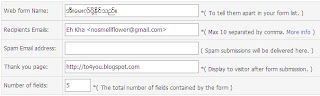
    ၆။ Web Form Wizard - Step 1တြင္
    - Web Form Nameေပးပါ။ ျမန္မာလိုေပးႏိုင္သည္။
    - Recipients Emails: တြင္ သင္၏ Emailလိပ္စာကိုျပမည္။ ျပင္စရာမလိုပါ။
    - Spam Email address: ထည့္စရာ မလိုပါ။
    - Thank you page: သည့္ တစ္ေယာက္ေယာက္က Messageပို႔ၿပီးက ေပၚလာမည့္ သင္၏ Blogစာမ်က္ႏွာျဖစ္သည္။ မိမိ၏ Blog URLအား ထည့္ပါ။ ဥပမာ - http://to4you.blogspot.com
    - Number of fields:သည့္ မိမိထည့္လိုေသာ Fieldျဖစ္သည္။ ကၽြန္ေတာ့္ Blogတြင္ Field ၅ခု ထည့္ထားပါသည္။
    ၿပီးက Next buttonကို ႏွိပ္ပါ။

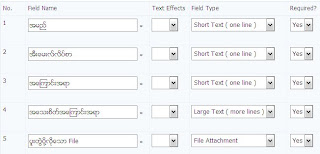
    ၇။ မိမိ၏ Field Nameကို ထည့္သြင္းရမည္ျဖစ္သည္။
    - ကၽြန္ေတာ္၏ Blogတြင္ (အမည္၊ အီးေမးလ္လိပ္စာ၊ အေၾကာင္းအရာ၊ အေသးစိတ္အေၾကာင္းအရာ၊ ပူးတြဲပို႔လိုေသာ File ဟူ၍ ျမန္မာလို ထည့္သြင္းထားပါသည္။ Text
    - Text Effectထည့္ႏိုင္သည္။
    - Field Typeတြင္ အေသးစိတ္အေၾကာင္းအရာ Fieldအား Large Text (More Lines) ထည့္ရမည္။ အဘယ္ေၾကာင့္ဆိုေသာ အေသးစိတ္ Messageကို ထည့္ရျခင္းေၾကာင့္ျဖစ္သည္။ ပူးတြဲပို႔လိုေသာ Fileတြင္ (File Attachment) ေရြးရမည္ျဖစ္သည္။ အဘယ္ေၾကာင့္ဆိုေသာ ပူးတြဲ Fileထည့္ရန္ျဖစ္သည္။ Required? တြင္ Yes အခုတိုင္း ေရြးရမည္ျဖစ္သည္။ Next buttonကိုႏွိပ္ပါ။
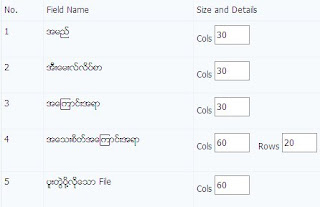
    ၈။ Step 3 တြင္ No., Field Name and Size and Details ရွိပါသည္။ သင္ျပင္ရမ်ာ က Size and Detailsသာ ျဖစ္သည္။ အဘယ္ေၾကာင့္ဆိုေသာ္ မိမိ၏ Post Areaေပၚမူတည္ၿပီး Sizeကို ျပင္ရမည္ျဖစ္သည္။ ကၽြန္ေတာ့္၏ Formရွိ အေသးစိတ္အေၾကာင္းအရာတြင္ clos= 60ႏွင့္ Rows=20 ထားထားပါသည္။ ပူးတြဲပို႔လိုေသာ Fileတြင္ ၅၀ထားပါသည္။ ျပင္ၿပီးက Nextကိုႏွိပ္ပါ။


    ၉။ Step 4တြင္
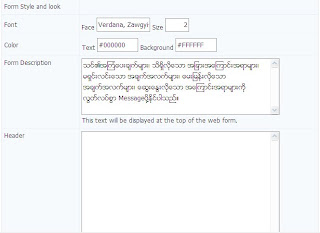
    - Font Face၌ Verdana, Zawgyi-oneထည့္ေပးပါ။
    - Size=2,
    - Textႏွင့္ Backgroundတြင္ အေရာင္ေျပာင္းႏိုင္သည္။ HTML color codeကိုထည့္ႏိုင္သည္။
    - Form Descriptionသည့္ မိမိ Form၏ အေပၚတြင္ ေပၚမည့္စာသားျဖစ္သည္။ ထည့္သင့္ပါသည္။ ကၽြန္ေတာ့္ Blog၏ ဆက္သြယ္ရန္ ေနရာတြင္ ၾကည့္ပါ။

    - ေလာေလာဆယ္ မလိုအပ္ေသးသည့္ အရာမ်ား မထည့္ထားပါ။
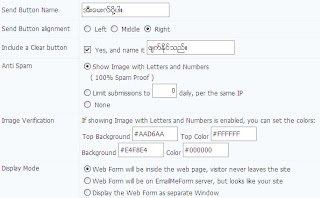
    - Send Button Nameကို ျမန္မာလိုေရးႏိုင္သည္။ ကၽြန္ေတာ္က "အီးေမးလ္ပို႔ပါ။"ဟုေရးထားပါသည္။ Alignmenကို Rightလုပ္ထားပါသည္။ မိမိထားလိုေသာေနရာတြင္ ထားပါရန္။
    - Include Clear button- ဖ်က္ႏိုင္သည္ဆိုသည့္ Buttonေလး ထည့္လိုပါက။ ကၽြန္ေတာ္ထည့္ထားပါသည္။
    - Anti-Spam တြင္ Show Image with letters and numberမ်ားကို ျပရပါမည္။
    - Display Modeသံုးခုရွိသည့္အနက္ Web Form will be inside the web page, visitors never leave the siteကို ေရြးခ်ယ္ရန္ အသင့္ေတာ္ဆံုးျဖစ္သည္။ ထိုမွသာလွ်င္ ဧည့္သည္ေတာ္မ်ား အထြက္သြားႏိုင္ပါ။
    - ၿပီးက Next ကိုႏွိပ္ပါ။
    ၁၀။ Step 5တြင္ Send copy of senderႏွင့္ Include data for exportကို Yes ျပထားသင့္သည္။ Nextကိုႏွိပ္ပါ။
    ၁၁။ Step 6သည့္ Formေပၚမည့္ပံုစံျဖစ္သည္။ ပံုစံမႀကိဳက္ေသးပါက Backလုပ္၍ ျပင္ႏိုင္ပါသည္။ ထို႔ေနာက္ Finish buttonကိုႏွိပ္ပါ။
    ၁၂။ You form has been saved သိမ္းၿပီးေၾကာင္း. ထိုေနရာတြင္ Get the HTML codeကိုႏွိပ္ပါ။
    ၁၃။ Copy and Paste the HTML codeတြင္ ထို Codeအား ကူးယူၿပီး
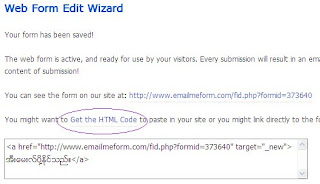

    ဆက္သြယ္ရန္ဆိုသည့္ Postအတြက္ New Postကို ေခၚၿပီး HTML viewျဖင့္ႏွိပ္ကာ ထို Codeအား Pasteလုပ္လိုက္ပါ။ ေခါင္းစဥ္အား ဆက္သြယ္ရန္ ရိုက္ထည့္ပါ။ ၾကိဳက္သလို ထည့္ႏိုင္သည္။

    ၁၄။ Publish Postႏွိပ္ပါ။ လုပ္ေဆာင္ခ်က္ ၿပီးပါၿပီ။
    မိမိျပဳလုပ္ၿပီးေသာ Formအား www.emailmeform.comတြင္ ျပန္ျပင္ႏိုင္ပါသည္။ Formမ်ားစြာကိုလည္း ဖန္တီးႏိုင္ပါသည္။
    အဆင္ကေတာ့ မ်ားပါတယ္။ စိတ္ရွည္စြ
    ဆက္ဖတ္ရန္

    July 28, 2009

    Flash Animated Labels Tag Cloudထည့္ရေအာင္

    Blogတိုင္းတြင္ ပံုမွန္အားျဖင့္ Side Bar၌ Labels widgetမ်ားပါပါသည္။ တခ်ိဳ႔ေသာ Bloggerမ်ားသည္ ထိုပံုစံကို မႏွစ္သက္ၾကပါသည္။ ထို႔ေၾကာင့္ မိမိတို႔ႏွစ္သက္ေသာ ပံုစံမ်ားကို ရွာေဖြေလ့ရွိပါသည္။ ယခုတင္ျပမည့္ အေၾကာင္းအရာကေတာ့ Flash Animated Label Tags Cloudျဖစ္ပါတယ္။ ႏွစ္သက္မယ္လို႔ ယံုၾကည္ပါတယ္။ မိမိတို႔၏ ဧည့္သည္မ်ားသည္လည္း ပံုစံသစ္ Labelကို ႏွစ္သက္ၾကပါတယ္။ ဒါေၾကာင့္ Styleသစ္ တင္ရန္ လိုပါသည္။ ကၽြန္ေတာ့္ရဲ့ Blogမွာလည္း တင္ထားပါတယ္။ Page နဲ႔လိုက္ေအာင္လည္း အေရာင္ျပင္ထားပါတယ္။
    ကိုင္း ဒါကို ဘယ္လိုထည့္မွာလဲ?

    ၁။ Blog Sign In> Dashboard> Layout> Edit HTMLကိုႏွိပ္ပါ။ Expend Widgetကို အမွန္ျခစ္ျပဖို႔ မေမ့ပါနဲ႔။
    ၂။ ေအာက္ပါ Codeကိုရွာပါ။


    <b:section class='sidebar' id='sidebar' preferred='yes'>


    ၃။ ရွာထားေသာ အေပၚCode၏ေအာက္တြင္ ေအာက္ပါ codeကို ထည့္သြင္းလိုက္ပါ။

    ဤ Codeကို Google Docထဲတြင္ထည့္ထားပါသည္။ ယူပါရန္။

    ၄။ Save Templateလုပ္ပါ။

    မွတ္ခ်က္။ ။ Page Elementတြင္ Label ဆိုသည့္ gedgetကို ေတြ႔ရပါလိမ့္မည္။ မိမိထားလိုသည့္ ေနရာတြင္ ေျပာင္းလိုက္ပါ။ width="250" height="200" ကိုလည္းေျပာင္းႏိုင္ပါသည္။
    ဆက္ဖတ္ရန္

    Adding Falling Hearts in Bloggerထည့္ရေအာင္

    အရင္တစ္ေခါက္ကတင္တဲ့ Adding Falling Starsအတိုင္း ေပါ့ပါးတဲ့ Falling Objectsေတြကို ထပ္တင္လိုက္ပါတယ္။ ႀကိဳက္တယ္ဆိုရင္ ထည့္လိုက္ေပါ့။

    နမူနာပံုစံကို ဤ Blogမွာ ၾကည့္ႏိုင္ပါတယ္။

    ၁။ Blogger Sign In> Layout > Page Elements > Add a gadget >HTML/JavaScriptေခၚပါ။
    ၂။ ေအာက္ပါ Codeကို ကူးယူ၍ Pasteလုပ္ပါ။


    <marquee behavior="scroll" direction="down" style="position:absolute; left:110px; top:150px; width:16px; height:483px; z-index:1;" scrollamount="3"><span class="falling1"><img src="http://www.allblogtools.com/imgup/12-2008/uploaded/heart3.gif"/></span></marquee>

    <marquee behavior="scroll" direction="down" style="position:absolute; left:169px; top:170px; width:16px; height:411px; z-index:1;" scrollamount="2"><span class="falling2"><img src="http://www.allblogtools.com/imgup/12-2008/uploaded/heart3.gif"/></span></marquee>

    <marquee behavior="scroll" direction="down" style="position:absolute; left:213px; top:190px; width:16px; height:346px; z-index:1;" scrollamount="3"><span class="falling1"><img src="http://www.allblogtools.com/imgup/12-2008/uploaded/heart3.gif"/></span></marquee>

    <marquee behavior="scroll" direction="down" style="position:absolute; left:279px; top:180px; width:16px; height:512px; z-index:1;" scrollamount="1"><span class="falling2"><img src="http://www.allblogtools.com/imgup/12-2008/uploaded/heart3.gif"/></span></marquee>

    <marquee behavior="scroll" direction="down" style="position:absolute; left:310px; top:160px; width:16px; height:428px; z-index:1;" scrollamount="7"><span class="falling1"><img src="http://www.allblogtools.com/imgup/12-2008/uploaded/heart3.gif"/></span></marquee>

    <marquee behavior="scroll" direction="down" style="position:absolute; left:250px; top:190px; width:16px; height:206px; z-index:1;" scrollamount="5"><span class="falling2"><img src="http://www.allblogtools.com/imgup/12-2008/uploaded/heart3.gif"/></span></marquee>

    <marquee behavior="scroll" direction="down" style="position:absolute; left:148px; top:150px; width:16px; height:287px; z-index:1;" scrollamount="7"><span class="falling1"><img src="http://www.allblogtools.com/imgup/12-2008/uploaded/heart3.gif"/></span></marquee>

    <marquee behavior="scroll" direction="down" style="position:absolute; left:297px; top:170px; width:16px; height:239px; z-index:1;" scrollamount="6"><span class="falling2"><img src="http://www.allblogtools.com/imgup/12-2008/uploaded/heart3.gif"/></span></marquee>

    <marquee behavior="scroll" direction="down" style="position:absolute; left:110px; top:230px; width:16px; height:254px; z-index:1;" scrollamount="7"><span class="falling1"><img src="http://www.allblogtools.com/imgup/12-2008/uploaded/heart3.gif"/></span></marquee>

    <marquee behavior="scroll" direction="down" style="position:absolute; left:369px; top:190px; width:16px; height:420px; z-index:1;" scrollamount="3"><span class="falling2"><img src="http://www.allblogtools.com/imgup/12-2008/uploaded/heart3.gif"/></span></marquee>

    <marquee behavior="scroll" direction="down" style="position:absolute; left:385px; top:150px; width:16px; height:520px; z-index:1;" scrollamount="3"><span class="falling1"><img src="http://www.allblogtools.com/imgup/12-2008/uploaded/heart3.gif"/></span></marquee>

    <marquee behavior="scroll" direction="down" style="position:absolute; left:441px; top:170px; width:16px; height:381px; z-index:1;" scrollamount="4"><span class="falling2"><img src="http://www.allblogtools.com/imgup/12-2008/uploaded/heart3.gif"/></span></marquee>

    <marquee behavior="scroll" direction="down" style="position:absolute; left:477px; top:200px; width:16px; height:392px; z-index:1;" scrollamount="7"><span class="falling1"><img src="http://www.allblogtools.com/imgup/12-2008/uploaded/heart3.gif"/></span></marquee>

    <marquee behavior="scroll" direction="down" style="position:absolute; left:569px; top:170px; width:16px; height:485px; z-index:1;" scrollamount="6"><span class="falling2"><img src="http://www.allblogtools.com/imgup/12-2008/uploaded/heart3.gif"/></span></marquee>

    <marquee behavior="scroll" direction="down" style="position:absolute; left:599px; top:200px; width:16px; height:386px; z-index:1;" scrollamount="3"><span class="falling1"><img src="http://www.allblogtools.com/imgup/12-2008/uploaded/heart3.gif"/></span></marquee>

    <marquee behavior="scroll" direction="down" style="position:absolute; left:530px; top:170px; width:16px; height:383px; z-index:1;" scrollamount="1"><span class="falling2"><img src="http://www.allblogtools.com/imgup/12-2008/uploaded/heart3.gif"/></span></marquee>

    <marquee behavior="scroll" direction="down" style="position:absolute; left:608px; top:200px; width:16px; height:347px; z-index:1;" scrollamount="1"><span class="falling1"><img src="http://www.allblogtools.com/imgup/12-2008/uploaded/heart3.gif"/></span></marquee>

    <marquee behavior="scroll" direction="down" style="position:absolute; left:642px; top:250px; width:16px; height:435px; z-index:1;" scrollamount="7"><span class="falling2"><img src="http://www.allblogtools.com/imgup/12-2008/uploaded/heart3.gif"/></span></marquee>

    <marquee behavior="scroll" direction="down" style="position:absolute; left:681px; top:290px; width:16px; height:499px; z-index:1;" scrollamount="3"><span class="falling1"><img src="http://www.allblogtools.com/imgup/12-2008/uploaded/heart3.gif"/></span></marquee>

    <marquee behavior="scroll" direction="down" style="position:absolute; left:659px; top:180px; width:16px; height:222px; z-index:1;" scrollamount="7"><span class="falling2"><img src="http://www.allblogtools.com/imgup/12-2008/uploaded/heart3.gif"/></span></marquee>

    <marquee behavior="scroll" direction="down" style="position:absolute; left:698px; top:160px; width:16px; height:250px; z-index:1;" scrollamount="4"><span class="falling1"><img src="http://www.allblogtools.com/imgup/12-2008/uploaded/heart3.gif"/></span></marquee>

    <marquee behavior="scroll" direction="down" style="position:absolute; left:726px; top:200px; width:16px; height:382px; z-index:1;" scrollamount="1"><span class="falling2"><img src="http://www.allblogtools.com/imgup/12-2008/uploaded/heart3.gif"/></span></marquee>

    <marquee behavior="scroll" direction="down" style="position:absolute; left:754px; top:150px; width:16px; height:542px; z-index:1;" scrollamount="1"><span class="falling1"><img src="http://www.allblogtools.com/imgup/12-2008/uploaded/heart3.gif"/></span></marquee>

    <marquee behavior="scroll" direction="down" style="position:absolute; left:780px; top:180px; width:16px; height:437px; z-index:1;" scrollamount="2"><span class="falling2"><img src="http://www.allblogtools.com/imgup/12-2008/uploaded/heart3.gif"/></span></marquee>


    <a style="color: #000080; font-family: tahoma; font-size: 11px; text-decoration: none; border: 1px double #00ADEF; padding: 1px; background: #FFF" target="_blank" href="http://www.allblogtools.com/">

    Get Blogger Falling Hearts</a>


    ၃။ Save လုပ္ပါ။ ထို Gedgetကို Sidebarေအာက္ေျခတြင္ထားပါ။
    ၄။ Save ထပ္လုပ္ပါ။
    ဆက္ဖတ္ရန္

    Adding Falling Star For Blogger

    လာျပန္ၿပီ Blogging. ေတာင္းဆိုခ်က္ေတြမ်ားတယ္။ အရင္တစ္ေခါက္ကတင္တဲ့ Snow Effectsက Blog Pageကို ေလးေစတယ္တဲ့။ ဒါ့ေၾကာင့္ ဒီထက္ သြက္လပ္ၿပီး ေပါ့ပါးတဲ့ Falling Objectsေတြ ထပ္လိုခ်င္တယ္တဲ့။ ဒါေၾကာင့္ ဒီ Postကို ထပ္တင္လိုက္ပါတယ္။

    Animated
    ၾကည္ေလးေတြ Blog Pageေပၚမွာ ဖြင့္လိုက္တိုင္း အလိုလိုနဲ႔ က်လာေအာင္ ထည့္လိုက္ၾကစို႔။ ပံုစံကို Blogမွာ ၾကည့္ႏိုင္ပါတယ္။

    ၁။ Blogger Sign In> Layout > Page Elements > Add a gadget >HTML/JavaScriptေခၚပါ။
    ၂။ ေအာက္ပါ Codeကို ကူးယူ၍ Pasteလုပ္ပါ။


    <a style="color: #000080; font-family: tahoma; font-size: 11px; text-decoration: none; border: 1px double #00ADEF; padding: 1px; background: #FFF" target="_blank" href="http://www.allblogtools.com/">Get Blogger Falling Objects</a>

    <div align="center">

    <marquee behavior="scroll" direction="down" style="position:absolute; left:110px; top:150px; width:16px; height:483px; z-index:1;" scrollamount="3"><span class="falling1"><img src="http://www.allblogtools.com/imgup/1-2009/uploaded/AllBlogTools.com.gif"/></span></marquee>

    <marquee behavior="scroll" direction="down" style="position:absolute; left:169px; top:170px; width:16px; height:411px; z-index:1;" scrollamount="2"><span class="falling2"><img src="http://www.allblogtools.com/imgup/1-2009/uploaded/AllBlogTools.com.gif"/></span></marquee>

    <marquee behavior="scroll" direction="down" style="position:absolute; left:213px; top:190px; width:16px; height:346px; z-index:1;" scrollamount="3"><span class="falling1"><img src="http://www.allblogtools.com/imgup/1-2009/uploaded/AllBlogTools.com.gif"/></span></marquee>

    <marquee behavior="scroll" direction="down" style="position:absolute; left:279px; top:180px; width:16px; height:512px; z-index:1;" scrollamount="1"><span class="falling2"><img src="http://www.allblogtools.com/imgup/1-2009/uploaded/AllBlogTools.com.gif"/></span></marquee>

    <marquee behavior="scroll" direction="down" style="position:absolute; left:310px; top:160px; width:16px; height:428px; z-index:1;" scrollamount="7"><span class="falling1"><img src="http://www.allblogtools.com/imgup/1-2009/uploaded/AllBlogTools.com.gif"/></span></marquee>

    <marquee behavior="scroll" direction="down" style="position:absolute; left:250px; top:190px; width:16px; height:206px; z-index:1;" scrollamount="5"><span class="falling2"><img src="http://www.allblogtools.com/imgup/1-2009/uploaded/AllBlogTools.com.gif"/></span></marquee>

    <marquee behavior="scroll" direction="down" style="position:absolute; left:148px; top:150px; width:16px; height:287px; z-index:1;" scrollamount="7"><span class="falling1"><img src="http://www.allblogtools.com/imgup/1-2009/uploaded/AllBlogTools.com.gif"/></span></marquee>

    <marquee behavior="scroll" direction="down" style="position:absolute; left:297px; top:170px; width:16px; height:239px; z-index:1;" scrollamount="6"><span class="falling2"><img src="http://www.allblogtools.com/imgup/1-2009/uploaded/AllBlogTools.com.gif"/></span></marquee>

    <marquee behavior="scroll" direction="down" style="position:absolute; left:110px; top:230px; width:16px; height:254px; z-index:1;" scrollamount="7"><span class="falling1"><img src="http://www.allblogtools.com/imgup/1-2009/uploaded/AllBlogTools.com.gif"/></span></marquee>

    <marquee behavior="scroll" direction="down" style="position:absolute; left:369px; top:190px; width:16px; height:420px; z-index:1;" scrollamount="3"><span class="falling2"><img src="http://www.allblogtools.com/imgup/1-2009/uploaded/AllBlogTools.com.gif"/></span></marquee>

    <marquee behavior="scroll" direction="down" style="position:absolute; left:385px; top:150px; width:16px; height:520px; z-index:1;" scrollamount="3"><span class="falling1"><img src="http://www.allblogtools.com/imgup/1-2009/uploaded/AllBlogTools.com.gif"/></span></marquee>

    <marquee behavior="scroll" direction="down" style="position:absolute; left:441px; top:170px; width:16px; height:381px; z-index:1;" scrollamount="4"><span class="falling2"><img src="http://www.allblogtools.com/imgup/1-2009/uploaded/AllBlogTools.com.gif"/></span></marquee>

    <marquee behavior="scroll" direction="down" style="position:absolute; left:477px; top:200px; width:16px; height:392px; z-index:1;" scrollamount="7"><span class="falling1"><img src="http://www.allblogtools.com/imgup/1-2009/uploaded/AllBlogTools.com.gif"/></span></marquee>

    <marquee behavior="scroll" direction="down" style="position:absolute; left:569px; top:170px; width:16px; height:485px; z-index:1;" scrollamount="6"><span class="falling2"><img src="http://www.allblogtools.com/imgup/1-2009/uploaded/AllBlogTools.com.gif"/></span></marquee>

    <marquee behavior="scroll" direction="down" style="position:absolute; left:599px; top:200px; width:16px; height:386px; z-index:1;" scrollamount="3"><span class="falling1"><img src="http://www.allblogtools.com/imgup/1-2009/uploaded/AllBlogTools.com.gif"/></span></marquee>

    <marquee behavior="scroll" direction="down" style="position:absolute; left:530px; top:170px; width:16px; height:383px; z-index:1;" scrollamount="1"><span class="falling2"><img src="http://www.allblogtools.com/imgup/1-2009/uploaded/AllBlogTools.com.gif"/></span></marquee>

    <marquee behavior="scroll" direction="down" style="position:absolute; left:608px; top:200px; width:16px; height:347px; z-index:1;" scrollamount="1"><span class="falling1"><img src="http://www.allblogtools.com/imgup/1-2009/uploaded/AllBlogTools.com.gif"/></span></marquee>

    <marquee behavior="scroll" direction="down" style="position:absolute; left:642px; top:250px; width:16px; height:435px; z-index:1;" scrollamount="7"><span class="falling2"><img src="http://www.allblogtools.com/imgup/1-2009/uploaded/AllBlogTools.com.gif"/></span></marquee>

    <marquee behavior="scroll" direction="down" style="position:absolute; left:681px; top:290px; width:16px; height:499px; z-index:1;" scrollamount="3"><span class="falling1"><img src="http://www.allblogtools.com/imgup/1-2009/uploaded/AllBlogTools.com.gif"/></span></marquee>

    <marquee behavior="scroll" direction="down" style="position:absolute; left:659px; top:180px; width:16px; height:222px; z-index:1;" scrollamount="7"><span class="falling2"><img src="http://www.allblogtools.com/imgup/1-2009/uploaded/AllBlogTools.com.gif"/></span></marquee>

    <marquee behavior="scroll" direction="down" style="position:absolute; left:698px; top:160px; width:16px; height:250px; z-index:1;" scrollamount="4"><span class="falling1"><img src="http://www.allblogtools.com/imgup/1-2009/uploaded/AllBlogTools.com.gif"/></span></marquee>

    <marquee behavior="scroll" direction="down" style="position:absolute; left:726px; top:200px; width:16px; height:382px; z-index:1;" scrollamount="1"><span class="falling2"><img src="http://www.allblogtools.com/imgup/1-2009/uploaded/AllBlogTools.com.gif"/></span></marquee>

    <marquee behavior="scroll" direction="down" style="position:absolute; left:754px; top:150px; width:16px; height:542px; z-index:1;" scrollamount="1"><span class="falling1"><img src="http://www.allblogtools.com/imgup/1-2009/uploaded/AllBlogTools.com.gif"/></span></marquee>

    <marquee behavior="scroll" direction="down" style="position:absolute; left:780px; top:180px; width:16px; height:437px; z-index:1;" scrollamount="2"><span class="falling2"><img src="http://www.allblogtools.com/imgup/1-2009/uploaded/AllBlogTools.com.gif"/></span></marquee>

    </div>


    ၃။ Save လုပ္ပါ။ ထို Gedgetကို Sidebarေအာက္ေျခတြင္ထားပါ။
    ၄။ Save ထပ္လုပ္ပါ။

    ဆက္ဖတ္ရန္

    July 27, 2009

    Blog Pageတြင္ အေပၚတက္ရန္ (သို႔) Back toTop Botton ထည့္လိုပါက

    Blog Pageတြင္ အေပၚတက္ရန္ (သို႔ ) Back toTop Bottonေလး ထည့္လိုလွ်င္ ေအာက္ပါ Codeကို ထည့္ပါ။
    <a style="display:scroll;position:fixed;bottom:5px;right:5px;" href="#" title="Back to Top"><img src="YOUR IMAGE LINK HERE" /></a>

    ထို Codeအားထည့္ရန္
    ၁။ Blogger Sign In> Layout > Page Elements > Add a gedget > HTML/ JavaScriptကို ေခၚပါ။
    ၂။ ကူးယူထားေသာ Codeအား ထည့္သြင္းလိုက္ပါ။
    ၃။ YOUR IMAGE LINK HEREေနရာတြင္ မိမိထည့္လိုေသာ Up Arrowကို ထည့္ႏိုင္ပါသည္။
    ၄။ ေအာက္ပါ Buttonမ်ားကိုလည္း ထည့္ႏိုင္ပါသည္။ ပံုကို Righ-clickႏွိပ္ၿပီး Address (URL)ကို Copyလုပ္၍ ထည့္ႏိုင္ပါသည္။ Search Engineတြင္လည္း ရွာယူႏုိင္ပါသည္။

    ဆက္ဖတ္ရန္
    Blog Widget by LinkWithin
     

    Popular Posts

    Widget by Blogger Buster

    Sign In and Check Message

    ယေန႔ဖတ္သြားေသာ ေခါင္းစဥ္မ်ား

    Recent Posts